

Invite your team and assign permissions
Add users to your company, decide what they can see or edit section by section and, if you want, limit them to a single store.
You can have other people work on Relax by inviting them to your team. Each user gets only the permissions you choose (view or edit, section by section) and can be limited to a single store. The invite arrives by email: the person signs in with that address and joins your company.
Invite a user
- Open Settings → Users & permissions.
- Click Invite a user.
- Enter the person's email. If they don't have a Relax account yet, you can also add their first and last name: they will be pre-filled in their profile when they accept.
- Choose the permissions per section: set each section of the app (Reservations, Products & menus, Price lists...) to view or edit. The sections left without a permission won't be visible.
- If the user should work on one store only, turn on This store only and select it.
- Confirm: the person receives an email with the link to accept the invite.
The invited person accepts the invite
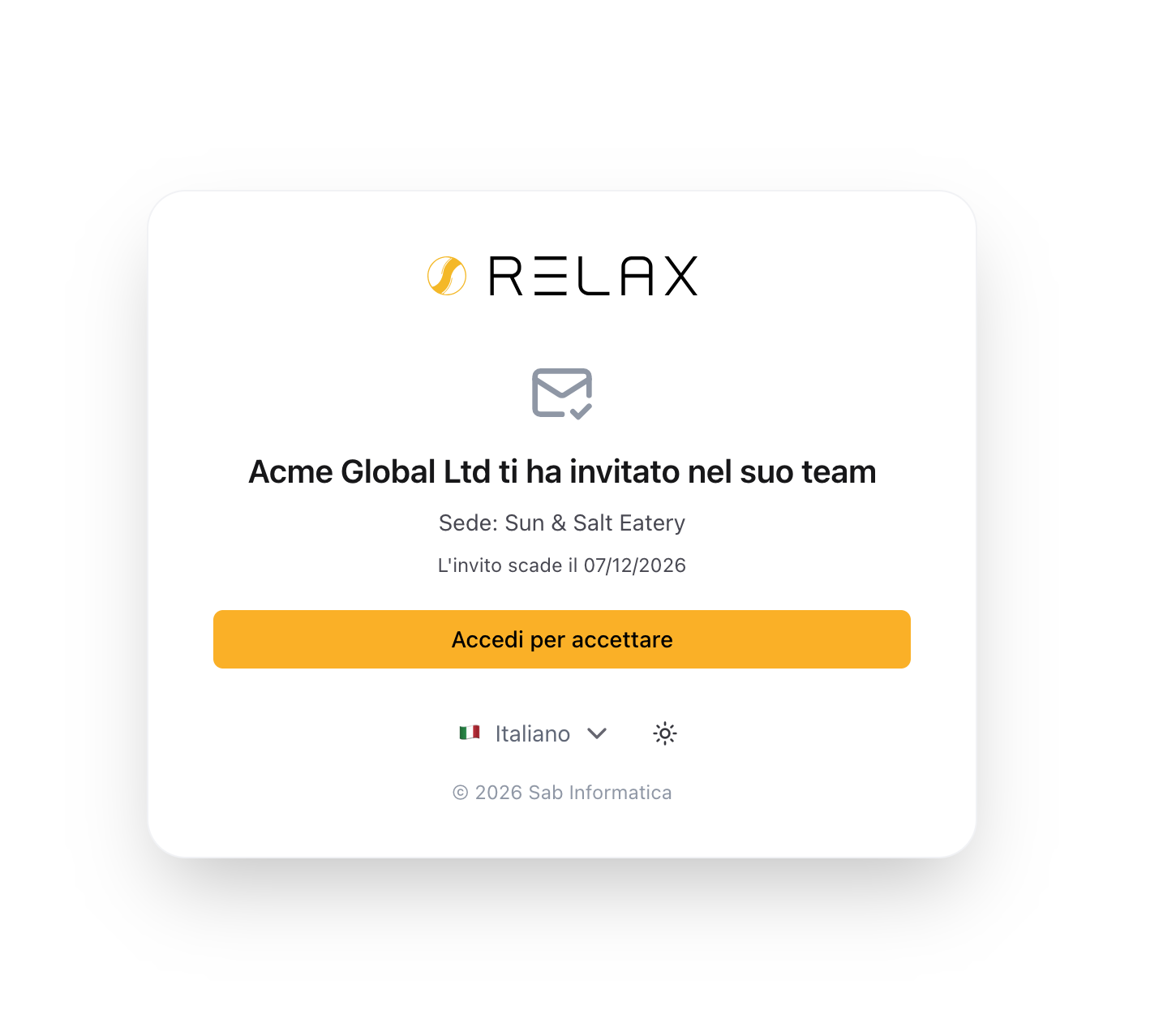
The person opens the email, clicks the link and finds the screen "… invited you to their team". From there they sign in (or sign up) with the same email the invite was sent to and confirm with Log in to accept.
Note: the sign-in email must match the one in the invite. The invite has an expiry date, shown on the screen: if it expires, send it again from the users list.
Manage users and permissions
In the Users & permissions list you see all the members with their badges: Owner, You (that's you), This store only and the list of sections they can access (for example Reservations, Products & menus, Price lists).
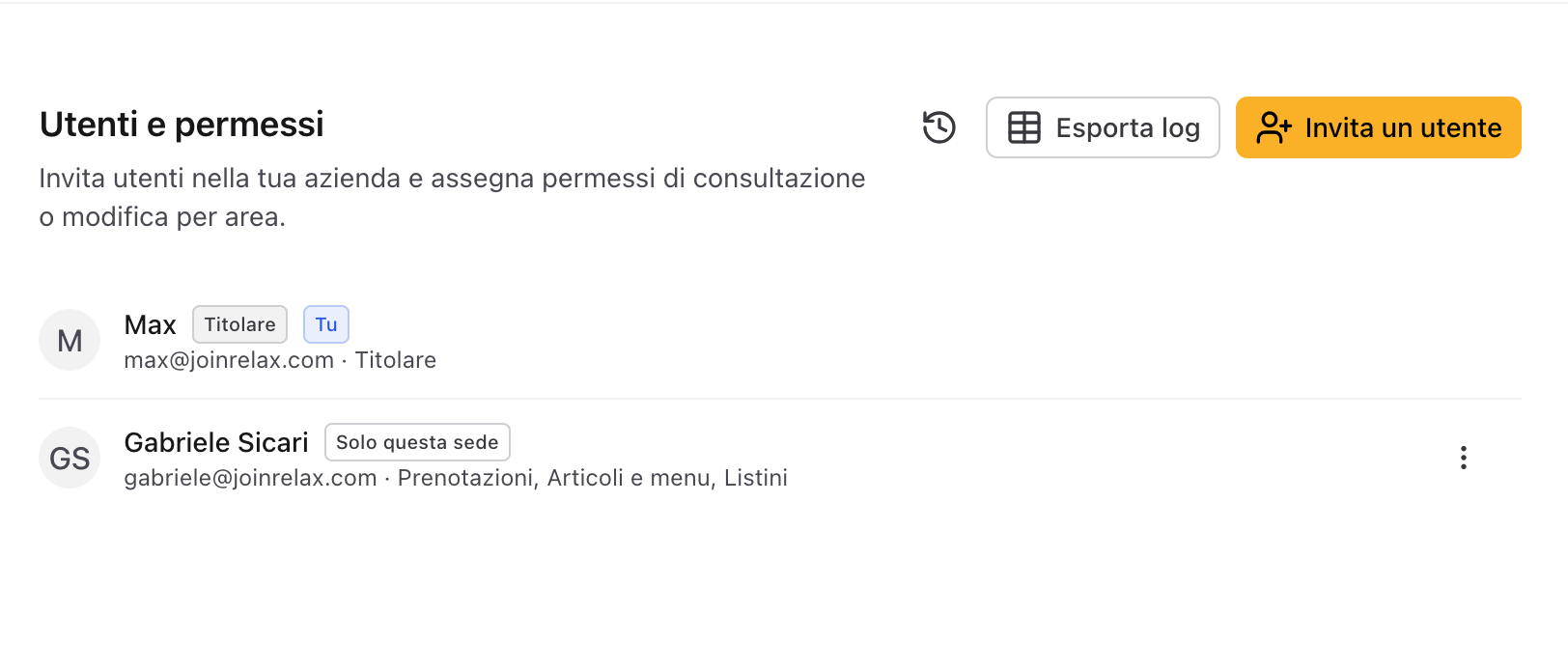
- Use the ⋮ menu next to a user to edit their permissions or remove them from the company.
- Update the levels per section (view or edit) or change the assigned store.
- Save: the changes take effect right away, at the user's next sign-in.
Note: the Owner always has full access and cannot be removed. With Export log you download the history of the team's actions.